
Transaction Fees: Creating a partner key requires a Solana transaction.
Make sure your wallet has sufficient SOL balance to pay for transaction fees.
One key per wallet: Each wallet can have only one partner key. If you need multiple partner keys, use multiple wallets and create a partner key for each wallet via the SDK.Default fee share: By default, a partner key receives 25% (2,500 bps) of the fees generated by tokens launched via that partner key. If you need a custom percentage, reach out to us and we can configure it for your account.
Method 1: Using the Dev Dashboard
The easiest way to create a partner key is through the Bags Developer Dashboard.Step 1: Access the Dashboard
- Go to https://dev.bags.fm and log in with your account.
Step 2: Create Partner Key
- Click the “Create partner key” button in the dashboard.
- Confirm creation in the confirmation modal by clicking the “Create partner key” button
- Note: Only one partner key can be created per wallet.

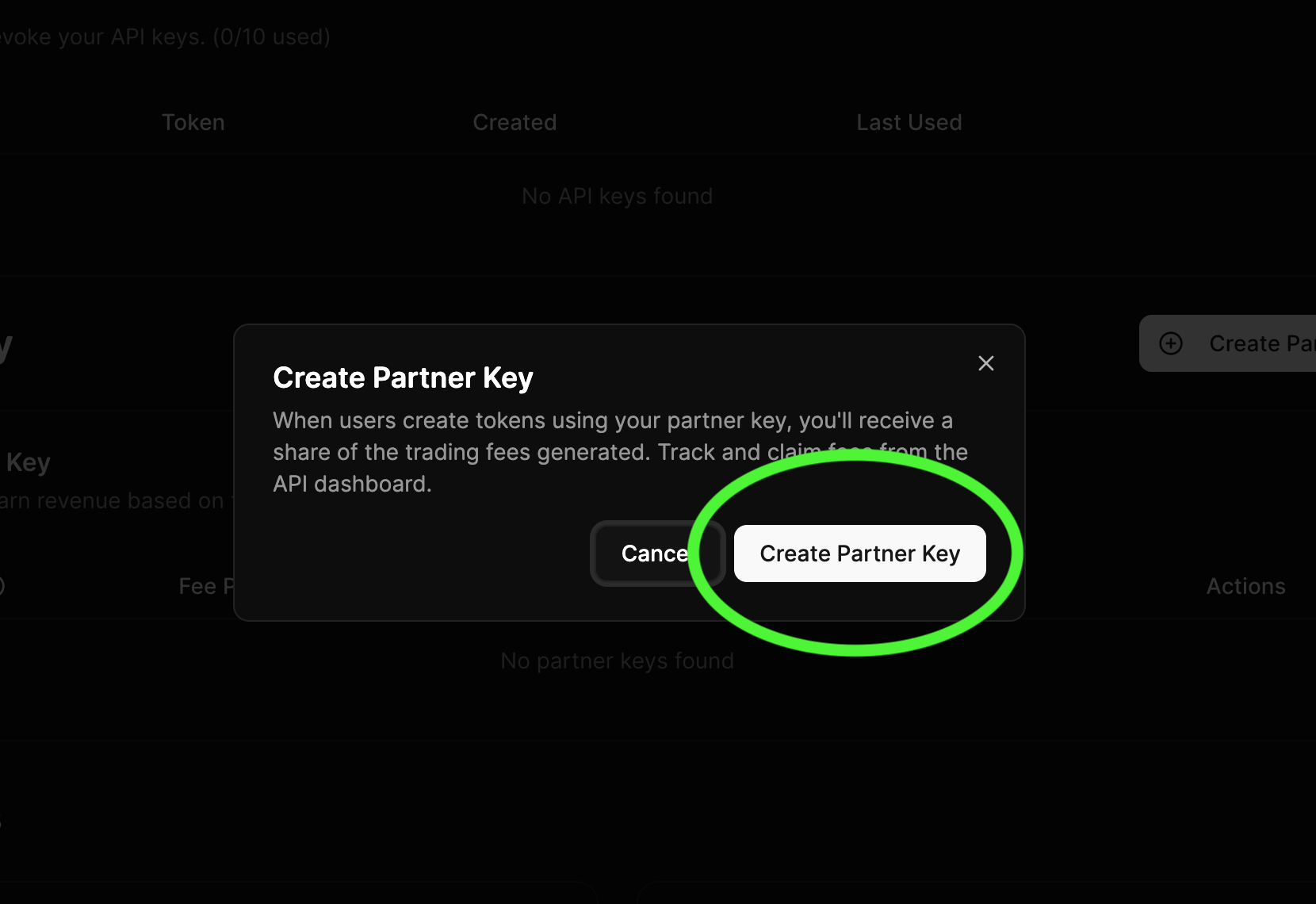
Step 3: View Your Partner Config
- After creating your partner key, you can view it in the Partner Key table below.
- You can copy your partner config key (PDA) from the table.
- The table also displays your claim stats, including claimed and unclaimed fees.
Method 2: Using the SDK
You can also create a partner key programmatically using the Bags TypeScript SDK.Prerequisites
Before starting, make sure you have:- Completed our TypeScript and Node.js Setup Guide.
- Got your API key from the Bags Developer Portal.
- A Solana wallet with some SOL for transaction fees.
- Installed the additional dependencies for this guide:
1. Set Up Environment Variables
This guide requires your wallet’s private key. Add it to your base.env file:
You can export your private key from wallets like Bags, Phantom, or Backpack.
2. The Partner Key Creation Script
Here is the complete script for creating a partner key. Save it ascreate-partner-key.ts.
Endpoints Used Under the Hood
This SDK flow uses:POST /fee-share/partner-config/creation-txviasdk.partner.getPartnerConfigCreationTransaction()
sdk.partner.getPartnerConfig() is an on-chain account read (PDA fetch), not a Bags HTTP API endpoint.
3. Understanding Partner Keys
A partner key (partner config) is a program-derived address (PDA) that represents a partner’s configuration for receiving fee shares. When you create a partner key:- Partner Wallet: The wallet address that will receive the partner’s share of fees
- Partner Config PDA: A derived address that uniquely identifies the partner configuration
- Fee Share: By default, partner keys receive 25% (2,500 bps) of fees from tokens launched via their key. Custom percentages are available on request—contact us to discuss.
- Per-Wallet Limit: Each wallet can have only one partner key. To use multiple partner keys, manage multiple wallets and create a partner key for each using the SDK.
When to Use Partner Keys
Partner keys are useful when:- You want to receive a share of fees from multiple token launches
- You’re building a platform that launches tokens and wants to collect fees
- You have a partnership agreement to receive fees from specific token launches
Using Partner Keys in Token Launches
Once you have a partner config PDA, you can use it when creating fee share configurations for token launches. See the Launch a Token guide for details on how to include partner and partnerConfig parameters.4. Run Your Script
To create a partner key, edit thepartnerWallet variable in create-partner-key.ts with the wallet address that should receive the partner fees.
Then, run the script from your terminal:
Alternative: Using the Bags CLI
This section requires the Bags CLI. See Install and Set Up the Bags CLI to get started.
--skip-confirm to bypass the confirmation prompt:
5. Next Steps
After creating a partner key, you can:- Check Partner Stats: Use
sdk.partner.getPartnerConfigClaimStats()to see accumulated fees - Claim Partner Fees: See the Claim Partner Fees guide for a complete walkthrough on checking and claiming your partner fees
- Use in Token Launches: Include your partner config when launching tokens (see Launch a Token guide)
6. Troubleshooting
Common issues include:- Partner Config Already Exists: If the partner config already exists, the script will detect it and display the existing configuration.
- Insufficient SOL: Your wallet needs SOL for transaction fees.
- Invalid Wallet Address: Ensure the partner wallet address is a valid Solana public key.